
WordPress
Viglet Turing Search (viglet-turing-search) is a PHP plugin installed inside
WordPress. It sends your content to a Viglet Turing Semantic Navigation (SN) site and
answers your site’s search from it.
Requires WordPress 6.6 and PHP 8.1 or later.
Watch the demo store
Section titled “Watch the demo store”Ana, who runs the Tarnfell demo store, shows what her shoppers see with the plugin: search as you type, filters from the catalog, cited answers, the shopping copilot and the Site assistant. The video is in Portuguese; the transcript below has the narration in both languages. Prefer to click around yourself? Open the demo store in WordPress Playground.

Transcript (Português)
Oi! Eu sou a Ana, e essa é a Recanto da Serra, a minha lojinha de aventura. Barracas, jaquetas, botas, tudo pra montanha. A loja roda em WordPress, com o WooCommerce cuidando do catálogo, do carrinho e do pagamento. Agora, vou ser sincera com você: durante anos a caixa de busca foi a parte mais triste da loja. A pessoa digitava alguma coisa, não achava nada e ia embora. Há poucas semanas eu troquei a busca pelo Viglet Turing, e nossa, mudou tudo. Então pega um café, e vem ver o que os meus clientes encontram agora!
Vamos começar por onde todo mundo começa: a página de busca. Sabe aquele momento em que você entra numa loja e não faz ideia do que digitar? Eu perdia tanta gente bem aqui.
Agora olha! As buscas populares dão um ponto de partida. Um toque, e o Viglet Turing traz exatamente os produtos que combinam, junto com os meus guias. Ninguém mais fica olhando pra uma caixa vazia, e sinceramente, só isso já me fez sorrir.
O negócio dos meus clientes é o seguinte: eles não digitam palavras-chave. Eles escrevem do jeito que falam comigo no balcão. Algo como, uma barraca para duas pessoas até dois mil e duzentos reais. A minha busca antiga travava com frases assim.
E olha isso! O Viglet Turing entendeu até dois mil e duzentos reais como um filtro de preço, sozinho, e mostrou só o que cabe no orçamento. E lá em cima, uma resposta curta indicando a melhor, com o preço e o porquê, e todas as fontes logo abaixo. A minha busca antiga do WordPress não achava nada com essa frase. Nada! Agora parece uma amiga que conhece a loja.
E as pessoas fazem perguntas. Daquelas que teriam um pouco de vergonha de fazer numa loja, tipo que mochila eu levo pra uma noite num refúgio. Então elas perguntam pro site.
O Assistente do site responde com base nos meus próprios guias, os que eu escrevi, e cada fonte é um link que dá pra abrir e conferir. É isso que eu mais amo: o Viglet Turing lê o meu site, ele não inventa nada. Parece que eu estou ali, respondendo cada cliente pessoalmente, até de madrugada.
Alguns dos meus produtos se parecem bastante, eu sei. Então as pessoas escolhem alguns e comparam, lado a lado.
A tabela coloca tudo lado a lado, atributo por atributo, e o Viglet Turing escreve um resumo curto a partir dessa mesma tabela, então ele não sai inventando. As diferenças ficam claras na hora. Antes, as pessoas me mandavam e-mail perguntando qual comprar. Agora a própria página conta.
Tá, essa é a minha parte favorita. Sério, a favorita. O cliente nem busca nada. Ele só descreve a viagem, tipo, dois dias atravessando a montanha em julho, primeira vez.
E o Viglet Turing transforma esse plano nas coisas que a pessoa vai precisar, onde dormir, algo pra se aquecer, e preenche cada uma com produtos que eu vendo de verdade, com o preço e o estoque direto da minha loja. Dá pra trocar qualquer item por outro, e com um clique, o kit inteiro vai pro carrinho. Dá pra acreditar? É como ter a minha melhor vendedora em cada página.
Antes de pagar, as pessoas gostam de olhar um produto com mais calma. Justo, eu também faço isso!
Os itens relacionados aparecem logo abaixo, e quando a pessoa faz uma pergunta ali, o Viglet Turing responde sobre aquele produto exato, não sobre outro qualquer, e ainda cita. Isso me mantém seca num dia de chuva? Ele sabe de qual produto ela está falando.
E aí eles finalizam a compra, igualzinho a qualquer loja WooCommerce. Fica tranquilo, isso é uma demonstração, ninguém é cobrado.
O pagamento em si é o mesmo de sempre. O que mudou foi tudo antes dele: a busca e a ajuda trouxeram a pessoa até aqui muito mais rápido.
Agora, a minha comparação favorita: o antes e o depois. À esquerda, a minha antiga busca do WordPress. Alguém digita puffer, e não acha nada. À direita, o Viglet Turing encontra as minhas jaquetas na hora. Mesma loja, mesmos produtos, uma experiência completamente diferente.
E aqui está a minha arma secreta. Cada busca dos meus clientes aparece nos meus insights, inclusive as que não acharam nada. Quando eu vejo uma, transformo num sinônimo com um clique, e a próxima pessoa encontra o que queria. Então a minha loja fica melhor a cada dia, e eu vou aprendendo o que os meus clientes querem de verdade.
Então essa é a Recanto da Serra, com o Viglet Turing! Se você também tem uma loja em WordPress com WooCommerce e está cansado daquela caixinha de busca triste, o plugin e essa demonstração inteira estão no endereço na tela. Vem experimentar, acho que você vai amar tanto quanto eu!
Transcript (English)
Hi! I’m Ana, and this is Tarnfell, my little outdoor shop. Tents, jackets, boots, everything for the hills, all running on WordPress. Now, I’ll be honest with you: for years my search box was the saddest part of the shop. People typed something, got nothing, and left. A few weeks ago I switched the search to Viglet Turing, and oh, it changed everything. So grab a coffee, and let me show you what my customers see now!
Let’s start where everyone starts: the search page. You know that moment when you land on a shop and have no idea what to type? I used to lose so many people right here.
Now look! The popular searches give people somewhere to start. One tap, and Viglet Turing brings back exactly the gear that matches, products and my guides together. Nobody is staring at an empty box anymore, and honestly, that alone made me smile.
Here’s the thing about my customers: they don’t type keywords. They write the way they talk to me at the counter. Something like, a two-person tent under four hundred dollars. My old search choked on sentences like that.
And look at this! Viglet Turing read under four hundred dollars as a price filter, all by itself, and showed only what fits the budget. And up top, a short answer that names the best one, with the price and why, and every source right below it. My old WordPress search found nothing at all for this sentence. Nothing! Now it reads like a friend who knows the shop.
And people ask questions. The kind they’d feel a bit silly asking in a shop, like what size backpack do I need for a night in a hut. So they ask the site instead.
The Site assistant answers from my own guides, the ones I wrote, and every source is a link they can open and check. That’s what I love most: Viglet Turing reads my site, it doesn’t make things up. It feels like I’m there, answering every customer myself, even at midnight.
Some of my products look a lot alike, I know. So people pick a few and compare them, side by side.
The table lines everything up, attribute by attribute, and Viglet Turing writes a short summary from that very same table, so it never wanders off. The differences are clear at a glance. Before, people emailed me to ask which one to buy. Now the page tells them.
Okay, this is my favourite part. Really, my favourite. A customer doesn’t search at all. They just describe their trip, like, two days crossing the mountains in July, first time.
And Viglet Turing turns that plan into the things they’ll need, a place to sleep, something warm, and fills each one with gear I really sell, with the price and the stock straight from my shop. They can swap any item for another one, and with one click, the whole kit is in the cart. Can you believe it? It’s like having my best salesperson on every page.
Before paying, people like to take a closer look at one product. Fair enough, I do it too!
Related gear shows up right below it, and when they ask a question on that page, Viglet Turing answers about that exact product, not some other one, and it cites it. Will this keep me dry on a wet day? It knows which jacket they mean.
And then they check out, just like in any WooCommerce shop. Don’t worry, this is a demo, so nobody is charged.
The checkout itself is the same as always. What changed is everything before it: the search and the help just got them here so much faster.
Now, my favourite comparison: the before and after. On the left, my old WordPress search. Someone types raincoat, and gets nothing. On the right, Viglet Turing finds my rain jackets right away. Same shop, same products, completely different experience.
And here’s my secret weapon. Every search my customers make shows up in my insights, including the ones that found nothing. When I see one, I turn it into a synonym with a single click, and the next person finds what they wanted. So my shop keeps getting better, every single day, and I’m learning what my customers really want.
So that’s Tarnfell, with Viglet Turing! If you run a WordPress shop too, and you’re tired of that sad little search box, the plugin and this whole demo are at the address on screen. Come and try it, I think you’re going to love it as much as I do!
How it works
Section titled “How it works”%%{init: {'theme': 'base', 'themeVariables': {'fontSize': '13px', 'primaryColor': '#fff', 'primaryBorderColor': '#c0c0c0', 'lineColor': '#888', 'textColor': '#333'}}}%%graph LR WP["📝 WordPress<br/>save / delete"] Q["🗂️ Queue<br/>one job per post"] W["⏱️ Worker<br/>WP-Cron or WP-CLI"] TUR["🔍 Turing<br/>SN site"]
WP -->|"enqueue"| Q Q --> W W -->|"POST /api/sn/import<br/>in batches, with retry"| TUR
classDef blue fill:#dbeafe,stroke:#4A90D9,stroke-width:2px,color:#1a1a1a classDef purple fill:#ede9fe,stroke:#9B6EC5,stroke-width:2px,color:#1a1a1a classDef green fill:#dcfce7,stroke:#50B86C,stroke-width:2px,color:#1a1a1a
class WP blue class Q,W purple class TUR green- Saving a post never calls Turing. Publishing, updating, unpublishing, trashing or deleting a post only queues one job for it; saving again replaces that job, so the last save wins.
- A worker sends the queue in batches through WP-Cron, or through
wp turing queue runon hosts that disable WP-Cron. When Turing is unreachable, a job backs off (1 minute, doubling, up to an hour). After 8 failed attempts, about three hours, it stops retrying. Every admin screen then warns that edits have not reached search, with a link to Search health. The worker asks Turing every 15 minutes whether it is back, and once a ping or any send goes through, the stopped edits go back in line with no click. A job is put back at most three times, so a document Turing keeps refusing stops for good and waits for Retry on Search health. A post Turing refuses is retried on its own, so one bad post does not block the rest of its batch. - Each post records its state: when it was last indexed, its last error and its failed attempts. The post lists and the block editor show it (see Admin).
- Index All runs in the background. The button under Settings → Actions, and
Index everything now on Setup, only start the reindex; WP-Cron sends it a few
batches at a time, so you can close the page as soon as it starts. A batch Turing does
not take is tried again after a wait (30 seconds, doubling, up to 10 minutes); after five
tries its posts count as failed and the reindex goes on with the next batch. A reindex of
all content then sends every PDF and sweeps, like
wp turing reindex, and skips the sweep when any post failed. Search health shows its progress, has Cancel reindex, and shows how the last one ended. It does not need visitors: after each step the site asks itself for the next one (a background request to its ownviglet-turing/v1/reindex/step, signed with a token only the running reindex knows), so a started reindex finishes on a site nobody visits. Where the server cannot reach its own address, such as a container behind a mapped port, point the request at one it can with theviglet_turing_reindex_step_urlfilter, ascron_requestdoes for WP-Cron. While Search health is open it also takes a step whenever the reindex has sat idle for 15 seconds, which covers a host that blocks those requests. A batch waiting out a retry after Turing failed resumes on the next WP-Cron run or the next step from Search health.
Install
Section titled “Install”From wp-admin: download viglet-turing-search-<version>.zip from the
Dumont releases (tags
wordpress-v<version>) and upload it under Plugins → Add New → Upload Plugin.
With Composer, for a site built in CI or running with DISALLOW_FILE_MODS: declare the
release zip as a package, and composer/installers puts it in the plugins directory.
{ "repositories": [ { "type": "package", "package": { "name": "viglet/turing-wordpress", "version": "1.0.0", "type": "wordpress-plugin", "dist": { "type": "zip", "url": "https://github.com/openviglet/dumont/releases/download/wordpress-v1.0.0/viglet-turing-search-1.0.0.zip" }, "require": { "composer/installers": "^2.0" } } } ], "require": { "viglet/turing-wordpress": "1.0.0" }}With WP-CLI: wp plugin install <zip URL> --activate.
Then open Viglet Turing Search → Setup.
Connect to Turing
Section titled “Connect to Turing”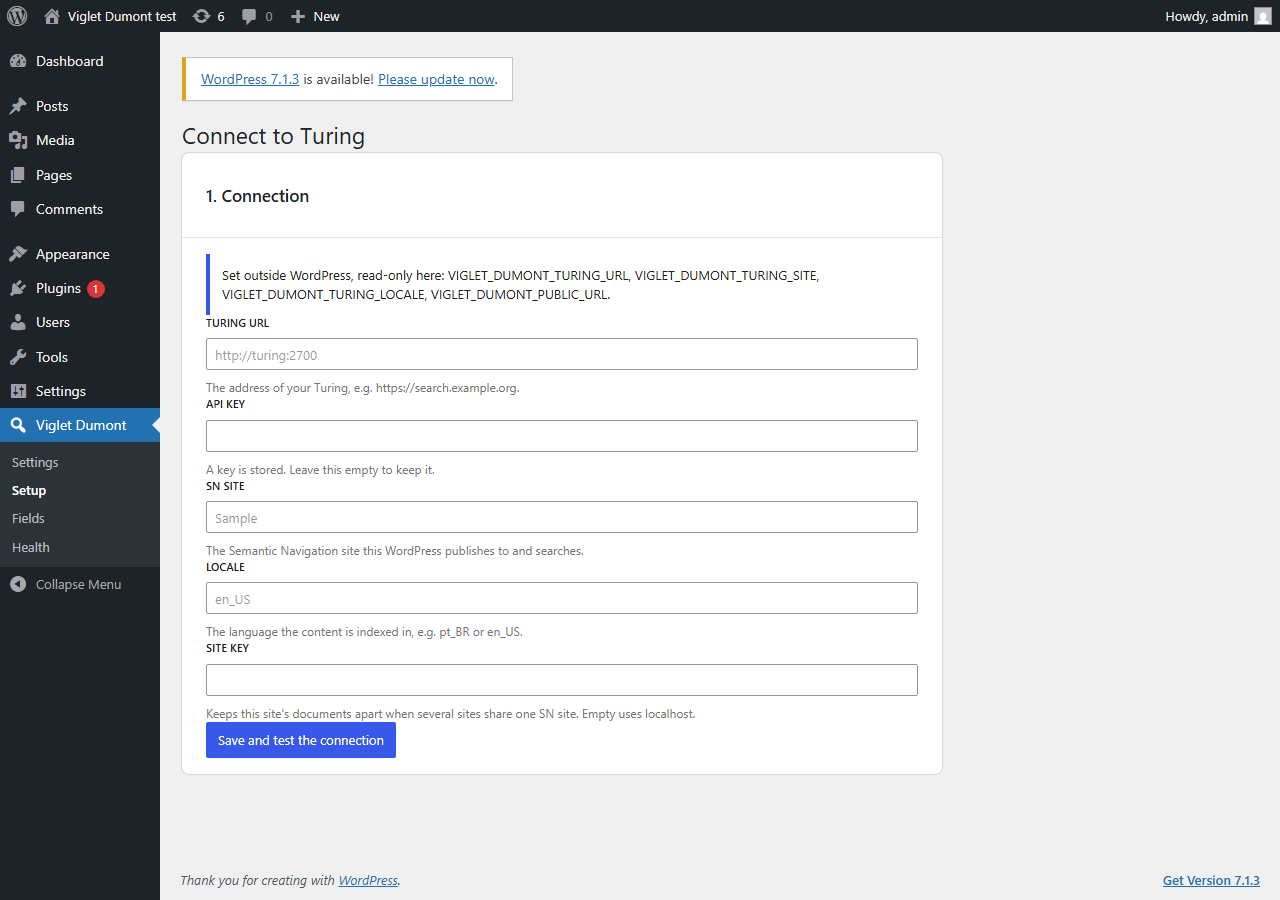
Viglet Turing Search → Setup takes the connection, then Save and test the connection checks it one step at a time and stops at the first failure, naming it:
| Step | Fails when |
|---|---|
| Address | The URL is not a full http:// or https:// address |
| Network | The host does not resolve (DNS), the certificate is rejected (TLS), nothing answers in time, or nothing listens on that port |
| Turing | The server answers, but not with Turing’s discovery document (wrong URL, or a proxy in the way) |
| API key | No key is set, or Turing refuses it (wrong, expired, or its user cannot manage SN sites) |
| SN site | No SN site has that name yet; the page offers Create the SN site |
Once every step passes, Index everything now runs the first index with a progress bar.
| Setting | Meaning |
|---|---|
| Turing URL | Turing as this server reaches it, e.g. https://search.example.org |
| API key | A Turing API token (Turing console → API Tokens). It is never shown again after saving |
| SN site | The Semantic Navigation site this WordPress publishes to and searches |
| Locale | The language the content is indexed in, e.g. pt_BR |
| Site key | Starts every document id; see Several sites, one SN site |
In WordPress Playground, WordPress runs in the
visitor’s browser and so do its requests to Turing: the blueprint needs
features.networking on, and Turing has to be on a public address. A public Turing is
reached directly when its turing.allowedOrigins includes https://playground.wordpress.net,
and through Playground’s own proxy when it does not. One on a private address, such as
http://localhost:2700, cannot be reached from there at all, and the connection check says
so at the Network step rather than reporting an HTTP error.
From the environment
Section titled “From the environment”A container deploy can set the connection with no wp-admin step. Each of these is read
from a wp-config.php constant or, failing that, an environment variable of the same name.
A value set either way wins over the settings page, shows there read-only, and is
never written to the database, so the API key stays out of database backups.
| Name | Setting |
|---|---|
VIGLET_TURING_TURING_URL |
Turing URL, as this server reaches it |
VIGLET_TURING_TURING_SITE |
SN site |
VIGLET_TURING_TURING_API_KEY |
API key |
VIGLET_TURING_TURING_LOCALE |
Locale |
VIGLET_TURING_SITE_KEY |
Site key |
VIGLET_TURING_PUBLIC_URL |
Turing as visitors’ browsers reach it, when that differs |
VIGLET_TURING_SEARCH_URL |
A results page on another site that this site’s searches go to |
VIGLET_TURING_SEARCH_SITE_KEYS |
The other sites this site also searches: key | label | address entries separated by commas or new lines, or a JSON list of {key, label, url} |
wp turing status prints where each value came from.
Demo mode
Section titled “Demo mode”VIGLET_TURING_DEMO=1, as a constant or an environment variable, is for a site whose
wp-admin belongs to whoever opens it, such as a demo in WordPress Playground. The site then
holds no API key and never writes to Turing: saving a post queues nothing, the indexing
buttons say demo mode is on, and Search tuning and Search insights are hidden,
because their Turing endpoints need a key. Search, chat, the copilot and answers keep working
from the visitors’ browsers against a PUBLIC SN site whose index is built elsewhere, and
the connection check confirms that site with a search sent without a key. It cannot be
turned off from wp-admin.
What gets indexed
Section titled “What gets indexed”Every post sends a fixed document: id, title, text (the rendered body without
markup, shortcodes or hidden UI text), abstract, url, type, author,
publication_date, modification_date, site, image, site_key, source_apps, plus
categories / section and tags when those options are on. Approved comments and named
custom fields can be added on the Settings page.
Fields and facets
Section titled “Fields and facets”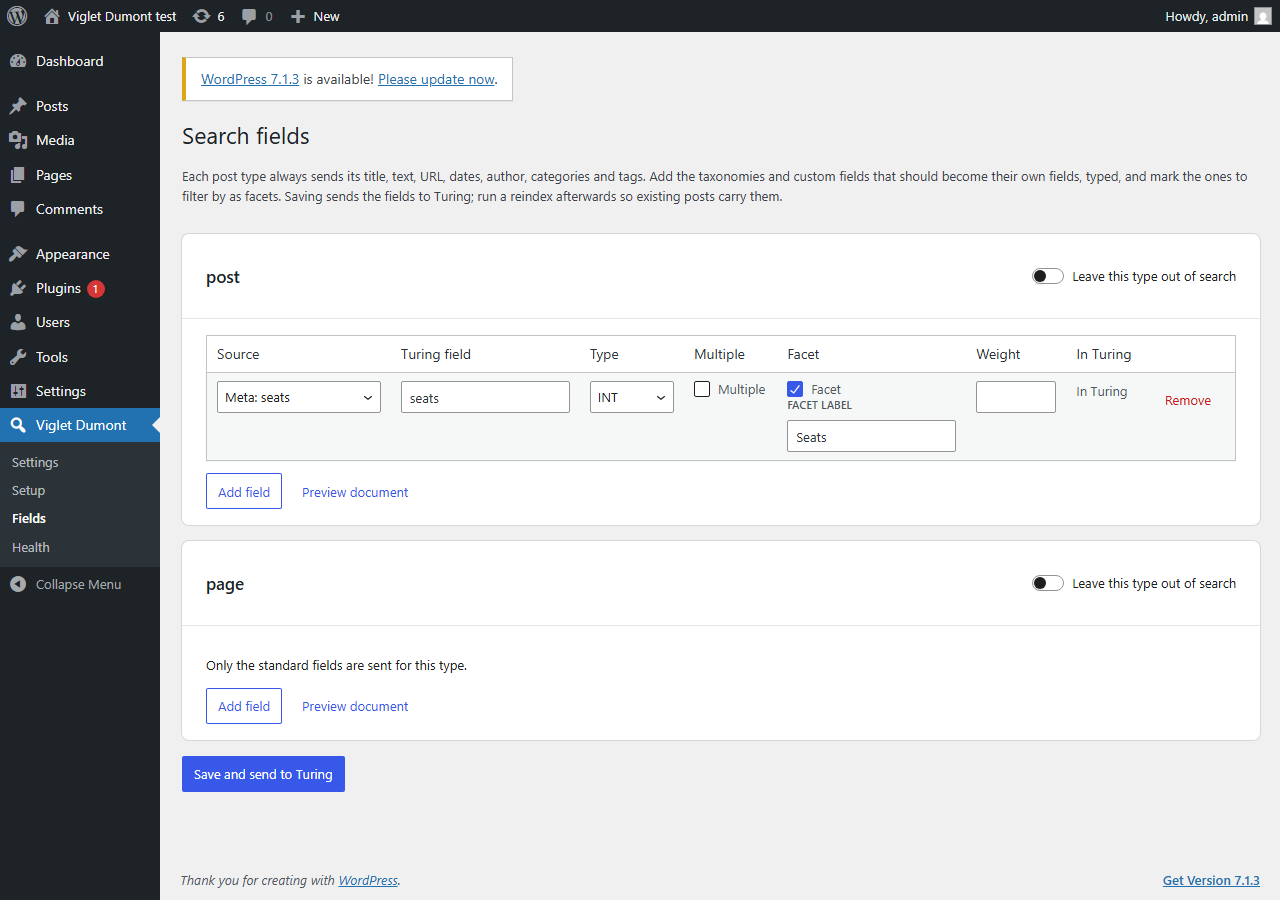
Viglet Turing Search → Fields maps, per post type, what else becomes its own Turing field:
- Source: a taxonomy, a meta key the posts actually carry, a post field (excerpt, slug, menu order, parent) or the featured image URL.
- Type:
STRING,TEXT,INT,LONG,FLOAT,DOUBLE,DATEorBOOL. A value that does not convert is left out, never guessed. Dates are read asYmd(ACF), a Unix timestamp, or any datestrtotimereads. - Multiple, Facet with its label, and a Weight (1 to 100) for ranking.
- Ranges, on a
DATEor number field: a range facet as well, provisioned as a Turing custom facet named<field>_range. A date picks its Periods: Past, for publication dates (upcoming, last 7 days, last 30 days, this year, before this year); Agenda, for dates still to come (today, next 7 days, this month, upcoming, past); or My own, up to eight, each bound in Turing’s date math (NOW/DAY,NOW/DAY+7DAYS,2026-12-01). Turing’s date math has no weeks, so an agenda offers the next 7 days rather than the calendar week. Turing includes a range’s end, and a day-only date is stored at midnight UTC, so each agenda period ends a second before the next one starts: an event today is never under Past, and one tomorrow is never under Today. A period of your own that should end where another starts needs the same-1SECOND. A period buckets the one field, so an event is placed by its start date even when it runs for weeks. A number lists its own ranges, each with a label and a From and To; an empty bound is an open end, and an empty label is written from the bounds (“20 – 50”, “Up to 20”, “50 or more”). - Show on result cards adds the field to each result in the Turing search block,
as a “Label: value” line under the snippet, in the order of the fields. The label is the
field’s label, or its name when it has none. A
DATEfield is written in the site’s date format, a multiple field’s values are joined with commas, and a URL is never shown as text. An event, say, can show the day it happens beside the day it was posted. - Date shown on cards and Image on cards, per post type: the card’s date can be one
of the type’s
DATEfields instead of the publication date, and its image one of its text fields (an image URL) instead of the featured image. An event’s card then shows the day it happens. A date with no time of day is shown as that day in every time zone. The instant search shows the same date, and the first card field, under each result. - Leave this type out of search switches a whole post type off.
- Types from other sources lists the types of documents another source sent under the
site key, such as a catalog’s
ArticleorThesis, which no post type has. Each one gets a Label (its badge on result cards), a Date shown on cards from the date fields its documents carry (defense_date, say) and an Image on cards from their text fields. This changes how they look, never what is indexed. A record with several types,["Article", "Thesis"], is shown as its first. The section appears once Turing holds such a document. The screen asks Turing for the other sources’ documents only, leaving the plugin’s own posts out with a negative filter, so however many posts the site has, the first 2,000 records from other sources are what it reads. This needs a Turing that honours a negative filter (2026.3 builds after T1233); an older one also returns the posts, which the screen skips.
In Turing says where each field stands: In Turing, Added on the next save, or Conflict when Turing already holds the field with another type. Preview document shows the JSON the newest post of the type sends. Save and send to Turing stores the mapping and provisions the fields through Turing’s manifest API, so facets need no console step. Run a reindex afterwards so existing posts carry the new fields.
With nothing configured, every public custom taxonomy is mapped as a facet.
People, organisations and places. Names live in a post’s text, not in its fields, so no
mapping can reach them. Turn on Settings → Search → Generative AI → Find people,
organisations and places in posts and Turing’s language model reads each post as it is
indexed and lists the people, organisations and places it names. Turing keeps a name only
when the text holds it, and writes it to one of three facet fields: entity_person,
entity_organization and entity_place. The section of that name on the Fields screen
gives each one its facet label (People, Organisations, Places by default) and an
Offered box. The Turing search block then offers the ones you keep as facets beside
the others, under those labels, and its filter chips use them too.
- It needs Generative AI on as well: the names are found by the language model of the site’s AI agent in Turing (its Default AI Agent, unless one was chosen in Turing’s console). With generative AI off, nothing is asked and the facets are not offered. The Fields section says which setting is missing.
- Each post indexed is a call to the language model, counted in the site’s AI spend in Turing. Turing keeps what it found in memory by text, so a post re-sent unchanged is not read again while Turing still holds it.
- The setting goes to Turing with the fields: on the next indexing run, or when the Fields screen is saved. Posts indexed before get their names once they are reindexed. Turning it off here tells Turing to stop, as long as generative AI is still on.
- If the model fails, the post is indexed without names.
Name variants (same Settings card) folds the ways a name is written into one facet value.
Write one name per line, the name to show first and then its variants after a |, separated
by ;:
Marta Vilar | Vilar, Marta; M. VilarFundação Aurora | AuroraSaving sends them to Turing’s Thesaurus, in a thesaurus of the plugin’s own named after the site key, selected for the SN site. A post that writes Vilar, Marta is then listed under Marta Vilar. Settings shows how many names were saved, or why Turing refused them. An API key bound to a partition of a shared SN site cannot write the Thesaurus, so on such a key add the names in Turing’s Thesaurus instead. Posts already indexed follow once reindexed.
WooCommerce. With WooCommerce active and product among the indexed types, a product
offers its shop fields as sources: Product: Price, Regular price, Sale price,
Stock status, SKU and Average rating. With nothing configured a product sends
its price, its stock as a Stock facet (in the shop’s words, “In stock”), its product
categories and tags, and each global attribute (pa_color, …) as a facet. Turn on
Ranges for the price to filter by “Up to 50”, “50 – 100” and so on. A product whose
stock changes from an order is sent again, although no post was saved, and so is a variable
product when one of its variations changes.
In the Turing search block a product’s result shows its price in the shop’s currency (the regular price struck through when it is on sale) and an Add to cart button. It adds one through WooCommerce’s Store API without leaving the page, and says whether it worked, with WooCommerce’s reason when it did not (out of stock, say). A variable product (one sold in colours or sizes) is indexed once, with its variations’ values as facet values, and Add to cart here, in the catalog copilot and in a kit puts in its first variation the shop can sell.
The same mapping is readable and writable as JSON at viglet-turing/v1/mapping. A theme
can map in code with the viglet_turing_mapping filter, and change a document just before
it is sent with viglet_turing_document. viglet_turing_result_card changes a result card
the search block draws on the server, before its script runs ($card, $document). The
script redraws a card from the mapping alone, so use the filter only for what Fields can’t
set, or the card changes once the page loads.
Excluding content
Section titled “Excluding content”A post is left out when its type is off, when its ID is in Exclude Posts/Pages
(Settings), or when Exclude from search is on in its editor panel
(_viglet_turing_exclude meta).
A post can also leave search on a date: in Fields, Leaves search on picks one of
the type’s DATE fields (a job opening’s last day to apply, say). Once that date has passed
the post is taken out of search, at that moment, with no one saving it. A date with no time
of day lasts to the end of that day. Move the date forward and save, and the post is back.
The editor panel says when a post leaves search, and Out of search: the date has passed
afterwards. wp turing sweep applies the same rule.
For a rule no field can express, the viglet_turing_should_index filter ($index,
$post) has the last word on whether a post is in search.
PDF files
Section titled “PDF files”With PDF files attached to them on (Settings → Content), each PDF in the media library
that a post in search attaches or links is a document of its own, found by the words
inside it. A link counts when the post’s content points at the PDF’s address in this
site’s uploads, so a form uploaded once and linked from several pages is found even though
no page attached it. The plugin sends the file with the document, and Turing reads its
text. A PDF shows as PDF in the type badge and facet, with its post as its section. It
is sent when uploaded or edited, when a post in search first attaches or links it, and on
Index All. It is removed when the attachment is deleted, and when no post in search
holds it any more: the last post that attaches or links it is unpublished, excluded,
deleted or past its Leaves search on date, or stops linking it. A PDF another post in
search still links stays. Only this site’s own uploads are sent, up to 20 MB each (the
viglet_turing_pdf_max_bytes filter changes the cap); a link to a file on another host is
never followed.
A post can also carry a PDF’s words in its own document. In Fields, the source Text
of the PDF in meta: <key> reads the PDF a meta names, by this site’s upload address or
by attachment ID, into a TEXT field of the post. A search for a sentence in the paper
then finds the post itself. This works whether or not PDF files attached to them is on,
and a file on another host is never fetched.
Several sites, one SN site
Section titled “Several sites, one SN site”Document ids are <site key>:post:<post ID>, and every document carries a site_key
field, provisioned as a facet. Several WordPress sites (or the blogs of a multisite
network) can therefore publish into one SN site for a unified search, without replacing
each other’s documents. The key defaults to the site’s host and path
(example.org-projetos); set it in Setup or with VIGLET_TURING_SITE_KEY.
Delete All and wp turing sweep remove only this key’s documents, and only the ones the
plugin sent. A Dumont connector given the same site key, such as a catalog of theses that
should come up in the site’s search, keeps its documents through Index All, the sweep and
Delete All. Search health says how many documents under the key came from another source.
Their types get a label, a card date and a card image under Fields → Types from other
sources.
A post and an archive record use the same field for the author, the date and the snippet:
Turing’s own author, publication_date and abstract, which the
catalog connector sends for OAI-PMH and DSpace records
too. So a thesis and a post by the same person share one author facet value, and both show
a date and a snippet on their cards. The plugin declares author with several values, for a
thesis’s co-authors. A site provisioned by an older version, where author held one value,
is converted the next time the fields are sent to Turing (Turing recreates the field), so
run Index All afterwards.
A key per site
Section titled “A key per site”A plain API key reaches every document in the SN site, so one site’s key could read or
delete another’s. Instead, give each site its own key bound to its site key. In the Turing
console, under Administration → API Tokens, set Partition of a shared site to the
field site_key and this site’s key as the value. Then paste the token into this site’s
Setup. Turing then keeps the key inside the site’s own documents. Some things are shared by
every site of the SN site, so this key cannot change them:
| What | With a key bound to the site |
|---|---|
| Fields | Saving fields that would change the SN site’s schema is refused, and the Fields screen and Health show Turing’s reason. Add or change fields with a key that has no partition |
| Boosts | Off. The Search tuning screen says why |
| Synonyms | Listed, but adding or removing one is refused, because every site shares the synonyms |
| Promoted results | Each site sees, adds and removes only its own, and they show only in its own searches |
Health’s AI features check works with either key. On a multisite network, don’t set
VIGLET_TURING_TURING_API_KEY: a constant applies to every blog and overrides each blog’s
own key.
Searching other sites too
Section titled “Searching other sites too”Each site searches only its own key by default. To have a site also find what other sites
publish into the same SN site, list them in Settings → Connection → Also search these
sites, one per line: the other site’s key, then optionally a label and its address,
separated by |:
second-site | Second site | https://second.example.org/library | The libraryVIGLET_TURING_SEARCH_SITE_KEYS sets the same list from outside WordPress. Keys are cleaned up
the way the Site key is. A blank key, a key listed twice, or this site’s own key is left out.
A label defaults to the key, and an address other than http or https is dropped.
With sites listed, every search here reads this site’s key and theirs: the Turing search block, the theme’s search page, the plugin’s results page, the instant search, the editor’s preview and the check behind the popular-search chips. A result from another site:
- links to that site’s own address, never to a page here;
- carries its site’s label: as a badge on the block’s cards and the results page, and in the instant search’s line under the title. On the theme’s search page it uses the theme’s markup, so it shows as the theme shows any post, without a badge;
- adds a Site facet to the block and the results page, one value per site by its label, so a visitor can narrow to one site and back.
The generative features (Ask the catalog, Build my kit, the Site assistant and the filters read from a sentence) send every listed key, so they cite those sites’ documents too. The assistant may open a page on a listed site only when its address is given.
The Related content block stays on this site’s posts unless its Include the sites this one also searches setting is on. With it on, the other sites’ documents appear with their title, their site’s label and a link to their own site, asked of Turing inside the same scope the search uses, so the nearest posts across those sites come first. This needs a Turing whose similar-documents search reads the site keys as alternatives (2026.3 builds after T1235). The automatic placement after content keeps the default.
The list is one-way: a site you list does not find this one’s documents unless it lists this site too. Writing never reaches another site’s documents. Index All, the sweep, Delete All, the counts on Search health, Search tuning and Already covered? in the editor all work on this site’s key alone.
A key bound to the site reads only its own site’s documents, so searches across sites are sent without the key, the way a visitor’s browser sends them. Search in Turing is public, so this exposes nothing new.
A site whose search lives on another site
Section titled “A site whose search lives on another site”A site that indexes into the shared SN site but has no results page of its own can send
its searches to another site’s page. In Settings → Search, set Results page on
another site to that page’s address (or set VIGLET_TURING_SEARCH_URL). Then Enter in
the instant search, a search block with no results part and the theme’s search box all
open that page with the query, as ?q=, or as ?s= when the address you set ends in
?s=. This site’s own search results page is no longer replaced, because it is not
where results are shown. The address must be https, and it can’t be this site’s own
address.
WP-CLI
Section titled “WP-CLI”| Command | What it does |
|---|---|
wp turing status |
Connection, SN site, site key, published versus indexed documents per type, the queue, and where each setting came from |
wp turing index [--type=<type>] [--ids=<ids>] [--since=<date>] |
Indexes now, synchronously, with a progress bar; exits non-zero when a batch fails. --ids also removes the listed posts that are not published |
wp turing reindex |
Provisions the fields, indexes every published post, then sweeps. Runs in the terminal, synchronously, unlike Index All in wp-admin |
wp turing sweep [--dry-run] |
Removes from Turing this site key’s documents that WordPress no longer publishes, e.g. posts deleted while the plugin was off |
wp turing queue run [--retry-failed] |
Sends the queue now, ignoring backoff, and names each post that failed |
wp turing queue status |
Lists the waiting and failed jobs with their last error |
wp turing ai status [--format=json] |
Which of Turing’s AI features the site can use, and why each one that is off is off; exits non-zero when any is off. While the site’s AI budget is spent it warns AI budget exhausted until and the reset date |
The same operations answer over REST under viglet-turing/v1/: status, index,
sweep, queue/run and queue/retry. POST reindex starts Index All in the background
(type is all or one post type), GET reindex reads its progress and
POST reindex/cancel stops it.
| Screen | What it is for |
|---|---|
| Setup | The connection and its step-by-step test, the SN site, the first index |
| Fields | The per-type field mapping, its state in Turing, a document preview |
| Health | Published versus indexed per type, the running reindex and the last one, the queue, its last run, the last 50 events |
| Settings | Post types, categories, tags, comments, custom fields, exclusions, batch size, search |
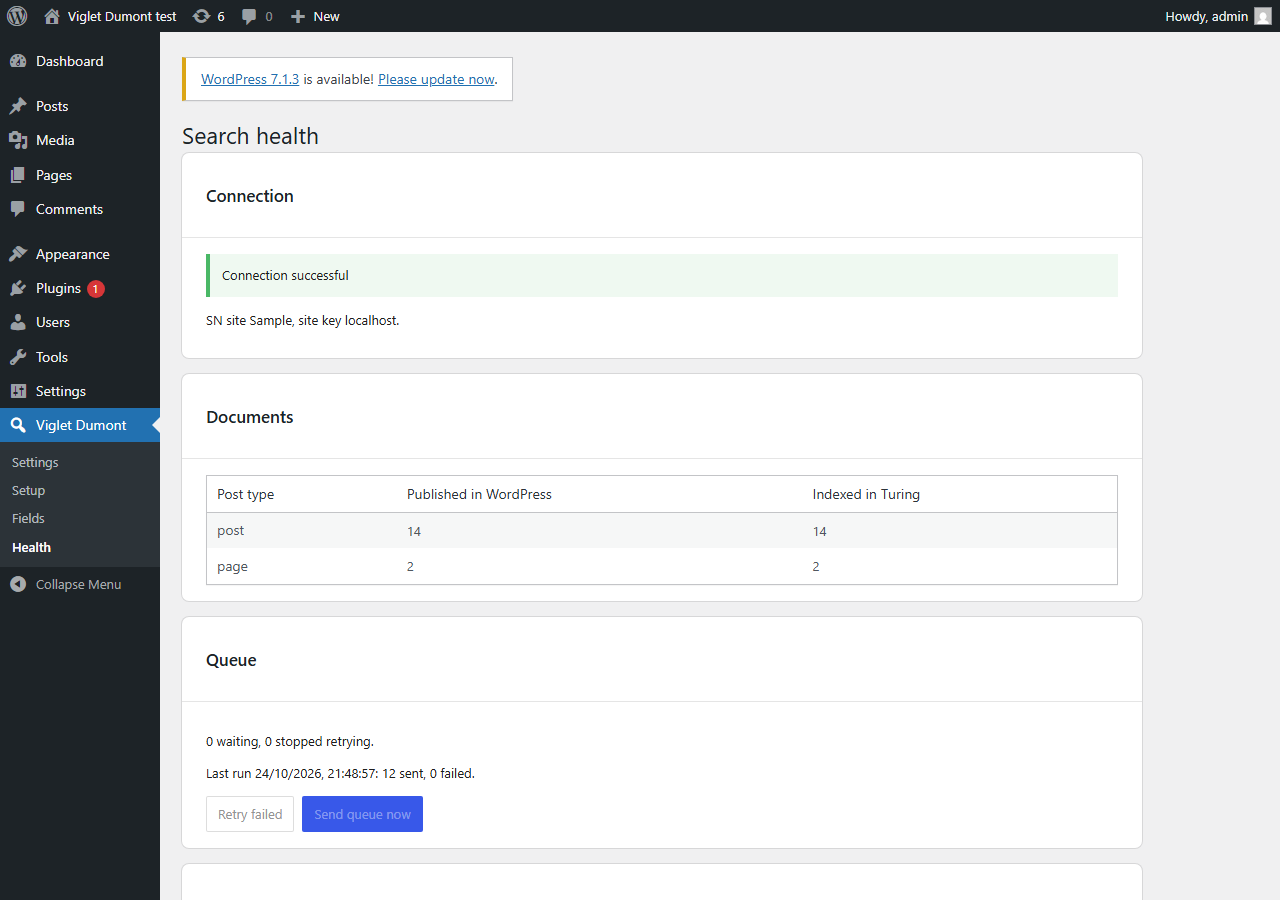
Health has Retry failed and Send queue now, and lists every send, removal, provisioning, sweep and reindex with its error when it failed. While a reindex runs, its card shows how many posts are done of how many, how many failed, a batch waiting to be tried again and Cancel reindex, and it updates every few seconds. Cancelling keeps what was already sent.
When the AI budget runs out. Turing can cap what a site spends on AI. Once the cap is reached, Turing refuses every AI call until the budget resets. While that lasts:
- The Ask this site block says Answers are paused until and the reset date, search
still works, rather than that the site could not answer. It reads the date from Turing’s
refusal (with
@viglet/turing-sdk2026.3.17 or later). - The Turing search block, the instant search’s answer and the Site assistant show the same line where the answer would be. They name the date once this site has seen the budget run out (the first refusal is reported to WordPress, which asks Turing itself), and say for now before that. Search and its results are unaffected.
- A sentence whose filters cannot be read is searched as typed.
- Health’s AI features card shows AI budget exhausted until and the reset date (or for now when Turing names none), with Turing’s own explanation, and Check AI features marks the features that are on as Paused. The moment the budget ran out and the moment it came back are listed among the events.
A visitor’s browser sees only that Turing refused, never when the budget resets. So it tells WordPress, and WordPress asks Turing once to read the reset date. It does that at most once every ten minutes whatever the visitors send, so a forged report cannot make Health say the budget is spent. The line goes away when the reset date passes, or as soon as an AI call WordPress makes goes through again. A Check AI features asks Turing again first, so a budget raised in Turing shows at once.
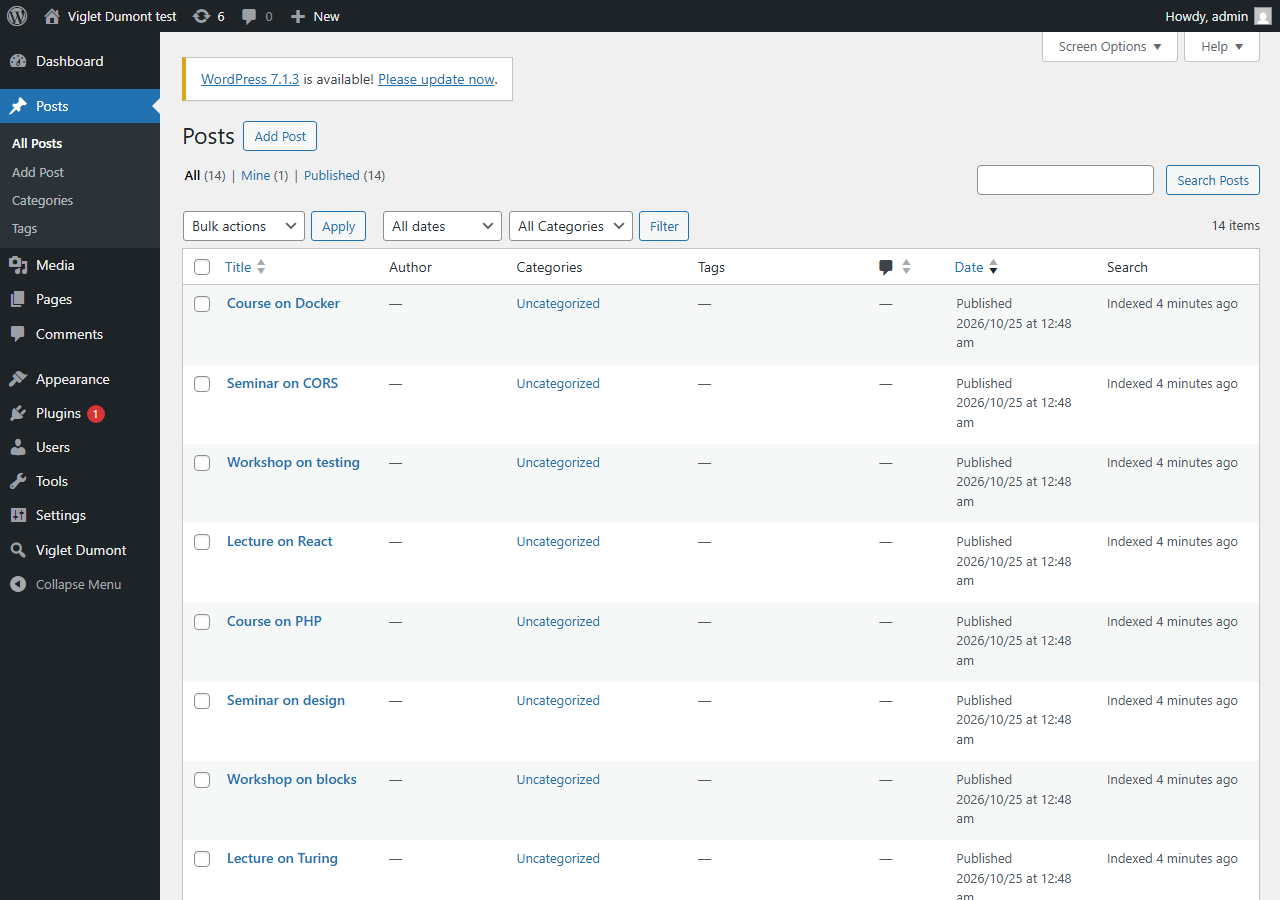
The post lists gain a Search column: Indexed 2 mins ago, Queued, Failed (the error shows on hover), Excluded or Not published. The block editor has a Search panel with the same state, Exclude from search and Reindex now. A reindex Turing refuses shows Turing’s own reason under the state, so a refused document reads differently from Turing being down.
With Find people, organisations and places in posts on, the panel’s Names in this post lists, under each facet’s label, the names Turing holds for the indexed post. It only shows them: Turing has no way to keep one name off one post, so to change them, change the text and reindex.
The same panel’s Assist section helps while writing, and changes nothing on its own:
- Find related posts lists what may already cover the post (Already covered?) and posts to link to (Link ideas), from Turing’s similar-documents and duplicate searches. A draft not yet indexed is compared by its title. Add a link puts a paragraph with the link after the selected block.
- Draft an excerpt asks Turing’s language model, from WordPress’s server with the stored API key, for a one- or two-sentence excerpt of the saved post, in the site’s language. Use this excerpt fills the excerpt field; the post changes only when you save it. Draft another asks again. Turing needs a default language model for it.
Viglet Turing Search → Insights shows what visitors searched for in the last 24 hours, 7 days, 30 days or all time, read from Turing’s search metrics with the stored API key: the top searches with their clicks and click-through, the searches that found nothing (with when they were last made), and the ones that found results nobody opened. Each of those last two offers Write about this, a new draft titled with the search, and a search that found nothing also offers Add a synonym, which opens Tuning with it typed in. Searches the block makes while the visitor is still typing are left out. The dashboard’s Site search this week widget shows the week’s five top searches and five that found nothing.
The admin ships in English and Brazilian Portuguese.
Search
Section titled “Search”Replace WordPress search with Turing (Settings → Search) is off on a fresh install. With it on, the results page is the theme’s own: Turing answers WordPress’s main search query and the theme’s search template renders the results, so a block theme keeps its header, footer and styles. Only this site key’s documents come back. If Turing does not answer, WordPress searches its database as before. The plugin’s older results page (with facets, for classic themes) remains available as Results page → The plugin’s results page.
When Turing is down. A page a visitor is waiting on (the theme’s search, the search
block’s first page, Related, popular searches, the plugin’s results page) waits at most
three seconds for Turing. When it gets no answer at all, it renders without it and marks
Turing down for a minute, so the pages after it do not wait: the theme’s search falls back
to WordPress’s own at once, and Related shows nothing. An HTTP error from Turing does not
set the mark. Admin screens, Index All and the queue keep their longer waits. The
viglet_turing_render_timeout filter changes the three seconds.
The instant search
Section titled “The instant search”With Instant search from anywhere on, Ctrl+K (⌘K on a Mac) and the theme’s own search box open a search that answers as the visitor types, and Enter takes the query to the full search page. Instant search layout picks how it looks:
-
A list of titles: the first six results, each with its date and address.
-
Immersive: up to twelve results grouped by type (“Posts”, “Pages”, “PDF files”), each with its image, date and first card field, and a See all per type that opens the results page filtered to that type. Before anything is typed it lists this browser’s recent searches and the site’s popular ones. On a desktop the highlighted result shows beside the list, with its image, snippet and card fields. Ctrl+Enter (⌘+Enter) opens the full results page whatever is highlighted. On a phone it fills the screen.
Explore links adds a row of the site’s own links to that empty state, below the recent and popular searches, and Tab reaches them. Write one
Label | URLper line, at most eight, for exampleEvents | /events/. The URL must be a fullhttp://orhttps://address or a path on this site that starts with/. A line with any other URL, or with no label, is dropped when the settings are saved. The row hides once the visitor types.With Answer questions on top of the immersive layout on, a question that rests for a moment gets Turing’s answer above the results. Each answer is an LLM call, so it is off by default, and it needs the site’s answers working in Turing (Health shows whether they are).
A query of three words or more, or one that reads as a question, often finds nothing as typed, because Turing requires every word. The instant search then searches again for any of its words and puts the best matches first, in both layouts, as the search block does.
The Turing search block
Section titled “The Turing search block”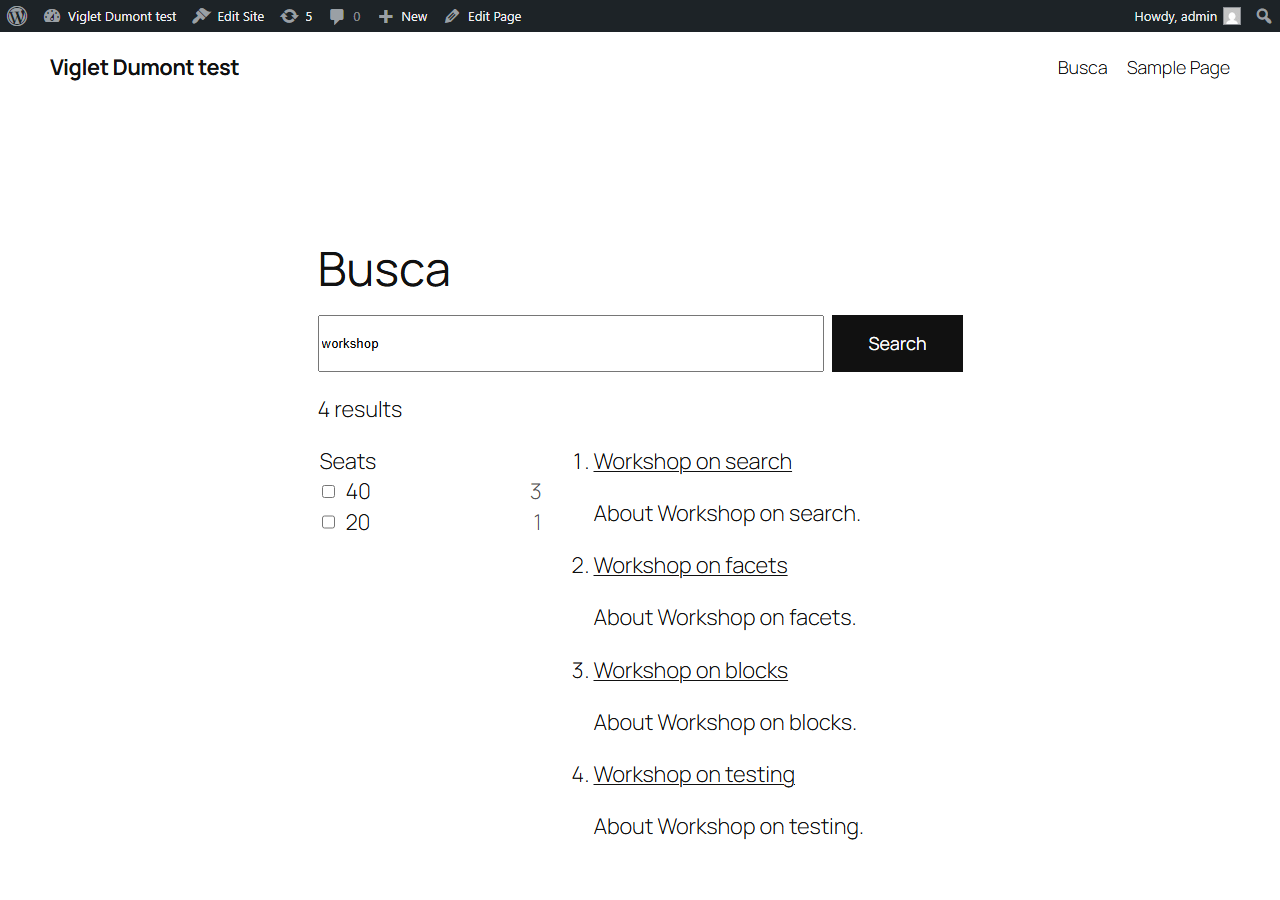
The Turing search block is a complete search UI for any page. It has a box with
suggestions, “did you mean”, the mapped facets, results and pages. It is built with the
Interactivity API on Turing’s JS SDK and takes its colours and type from the theme. It
reads ?q= (or ?s=), so a page holding it can serve as the site’s search page.
Always filter by scopes a block to one section of the site: a box on the events page
set to type:event searches only events, and one set to a mapped facet’s value
(publisher:sociology) only what carries it. Each filter is field:value. Every search
the block makes stays inside them, the first page drawn on the server included, and so do
the terms it suggests as the visitor types: a box set to type:event never offers a word
only posts hold. Scoped suggestions need a Turing that answers a filtered autocomplete with
terms (2026.3 builds after T1226); an older one answers it with document titles. Visitors
never see them as a filter they can remove. Under the box a line names the scope (“In
Events”) with a Search the whole site link to the site’s search page, keeping the query.
A scoped block with only a search box takes its scope to the search page, where the same
line shows. A scoped block shows no popular searches, since they may find nothing inside it.
With Suggest the filters a sentence names on, a search that reads as a sentence (“posts about php from last year”) also asks Turing’s natural-language filters which filters it names. The ones Turing checked against the site, on a mapped facet or on the post type or publication date, show as chips under the box; a click applies one and takes the words it was read from out of the query. Nothing is applied without a click. Each sentence is an LLM call, and with no language model in Turing nothing is offered.
With Apply them instead of suggesting on as well, the filters are applied straight away and a line under the box says what was read: “Understood: Color: Red, Price: ≤ 200”, with Undo to put the search back as it was typed. On a WooCommerce shop a price the sentence names (“under $400”, “até R$ 400”, “entre 100 e 300 reais”, “over $50”) is read by the block itself and filters the shop’s price field, so it works even with no language model in Turing. Only an amount marked as money counts: “under 2 kg” is left alone. A size works the same way (“size M”, “tamanho 42”) on a facet whose field or name says size, and only when that value is one the site’s products have: “size XXXL” sets nothing.
A period is read the same way, on a date field that has a period facet (an agenda’s first): “em novembro”, “in March 2027”, “next week”, “semana que vem”, “amanhã”, “this month”. A month with no year is the next one to come on an agenda and the last one gone on past dates. “May” and “March” need “in”, “em” or a year beside them, since both are also verbs. So “debates em novembro” on an agenda filters the event dates to November with no language model, and searches “debates”.
A site with its own search blocks turns the block off:
add_filter( 'viglet_turing_register_blocks', '__return_false' );The Ask this site block
Section titled “The Ask this site block”The Ask this site block is a conversation with Turing’s copilot. It speaks as the site does: on a WooCommerce shop it is headed Ask the catalog and offers a kit of products; anywhere else it is headed Ask this site, names no catalog, and offers a plan only when switched on. A visitor asks in plain words, and the answer comes from this site’s content and cites the items it used. On a WooCommerce shop each cited product shows the shop’s price and an Add to cart button; the copilot never puts anything in the cart by itself. The block appears only when Turing has a language model for the copilot.
On a product’s page (or any indexed post’s), the box reads Ask about and the product’s name, and the question goes to Turing with that product’s document: Turing answers about it first and always cites it, with other products only as alternatives. The Site assistant does the same: a question asked in it on a product’s page is about that product, and one asked after moving to another page is about that page. This needs a Turing that takes the document (2026.3 builds after T1178); an older one answers from the whole catalog, as before.
From the search answer to the assistant and back. When the page also has the Site
assistant (its block, or its launcher on every page), the Turing search block’s answer ends
with Ask a follow-up in the assistant. It opens the assistant with the search and its
answer, sources included, as the conversation’s first exchange, so “and on Saturdays?” is
read as a follow-up instead of starting over. The other way, an assistant answer that cites
more than three posts ends with See every result for this question, which opens the
site’s results page for that question, filtered to the posts’ type when they all share one
(all products, say). The type comes from Turing with each source (2026.3 builds after T1264,
for a site that indexes a type field); without it the page opens unfiltered.
Guided conversations. A chat flow built for the SN site’s chat runs in the Site assistant as it does in Turing: the choices a step offers show as buttons (typing an answer still works), and a form step shows its fields as a labelled form, sent only when the visitor submits it; the browser checks required fields and email, phone, number and date fields first. New conversation also clears the flow’s place on Turing, so the next question starts it from the beginning.
Build my kit. With Offer Build my kit on (the default, in the block’s settings), the block has a second mode, Plan a kit. The visitor describes a plan (“two days crossing the mountains in July, first time”) and Turing answers with the needs the plan implies, each with the products it found for it and a one-line reason drawn from the product’s own attributes:
- Prices come from WooCommerce, and so does stock: a product the shop cannot sell is marked Out of stock and left out of the cart, whatever the index says.
- A need the catalog has nothing for is named (“Nothing in the catalog yet for: shelter”) rather than filled with something unrelated.
- Journal posts that cover the plan are listed as Guides for this plan.
- A need’s products are alternatives: the first one the shop can sell starts ticked, and the visitor can tick another or untick it. Add N products to the cart puts the ticked ones in the cart at once, and the confirmation shows the cart’s total as WooCommerce computes it.
The kit needs a Turing that has the kit call (POST /api/sn/{site}/copilot/kit), which
2026.3.6 does not, and the Stock field mapped, which a WooCommerce site has by default.
A plan on a site that is not a shop. Turn on Offer a plan in the block’s settings and say, under What the plan uses, what it works with:
| Setting | What it takes | Blank means |
|---|---|---|
| Types it proposes | Indexed types, comma-separated, e.g. course, event |
Products on a shop; any type elsewhere |
| Types it cites as guides | Indexed types, e.g. page |
Posts on a shop; none elsewhere |
| Availability field | An indexed field saying whether an item can be taken, e.g. seats_left |
stock_status on a shop; none elsewhere |
The mode is then Make a plan and its button Build my plan. A school that stages
event gets the events a plan needs, grouped by need, as links; there is no cart, and an
item Turing marks unavailable reads Unavailable.
Building your own search on the SDK
Section titled “Building your own search on the SDK”The plugin registers @viglet/turing-sdk
as WordPress script modules, so a theme imports it instead of bundling a copy:
@viglet/turing-sdk: the SDK as published;viglet-turing/search: the SDK already configured for this site, with searches filtered to its site key.
// A theme module registered with 'viglet-turing/search' as a dependency.import { createSiteSearch, createSiteAutoComplete, config } from 'viglet-turing/search';
const search = createSiteSearch();      // search-only; { controller: { chat: true } } adds answerssearch.subscribe( ( state ) => render( state ) );await search.searchQuery( 'workshop' );
The configuration it reads is public and holds no key: Turing’s public URL, the SN site,
the locale, the site key and the mapped facets. PHP reads it with
viglet_turing_public_config(), and anything else with
GET /wp-json/viglet-turing/v1/public-config.
Try it in your browser
Section titled “Try it in your browser”Open the demo store in WordPress Playground. WordPress, WooCommerce, the plugin and the Tarnfell store start in your browser, with nothing to install, and search a hosted Viglet Turing. The first load takes two or three minutes while the catalog is created. The plugin runs in demo mode: it reads the hosted index and never writes to it, so the Search tuning and Search insights screens are hidden. Every feature is marked with its chapter in the shopper’s story, and nothing you do is kept: a reload starts the store again.
Try it locally
Section titled “Try it locally”The plugin’s source, wordpress/
in the Turing repository, has a Docker stack for trying it end to end. run-docker.cmd
starts WordPress, MariaDB, a WP-Cron runner and a local Turing, creates the SN site, gives
the plugin an API key, and builds the admin screens. WordPress is then at
http://localhost:8080 and Turing at http://localhost:2700.
run-docker.cmd demo also starts the two demo stores, side by side: Tarnfell, a WooCommerce
shop with its own catalog, buying guides and SN site at http://localhost:38082, and the same
store in Portuguese and in reais, Recanto da Serra, at http://localhost:38083
(run-docker.cmd demo en or demo pt starts one). Its /showcase/ page holds
every Turing block, and ?tour=1 on any of its pages marks each feature with its chapter in
the shopper’s story
that the WordPress page walks through. Set OPENAI_API_KEY before
starting it to turn on the answers, the catalog copilot and the Site assistant; without it
they stay hidden. On Linux and macOS, sh bin/run-docker.sh demo does the same (it
provisions Turing through PowerShell, pwsh), and demo reset en or demo reset pt deletes
one store’s WordPress and database, leaving the other as it was.
run-docker.cmd demo edu starts a demo school beside the stores: Lumen School at
http://localhost:38085, or Escola Lumen in Portuguese at http://localhost:38086 with
demo edu-pt. It has no WooCommerce: it puts the plugin’s features for a site that is not a
store together on one site. Its Agenda page is a search block fixed to events. The event’s
day filters by Today, Next 7 days, This month, Upcoming and Past, and a
search like debates in December is read as that month. Each event’s card shows the day it
happens and its poster. An opening leaves search the day after it closes, and the Library
finds a book by a sentence inside its sample chapter, a PDF. Every date is counted from the day
the school is set up, so the agenda is never stale. The
school’s story
walks it, and npm run test:e2e:edu runs its browser tests. Each demo site, store or school, is
described by one file in demo/sites/, which the scripts and the browser tests read.